
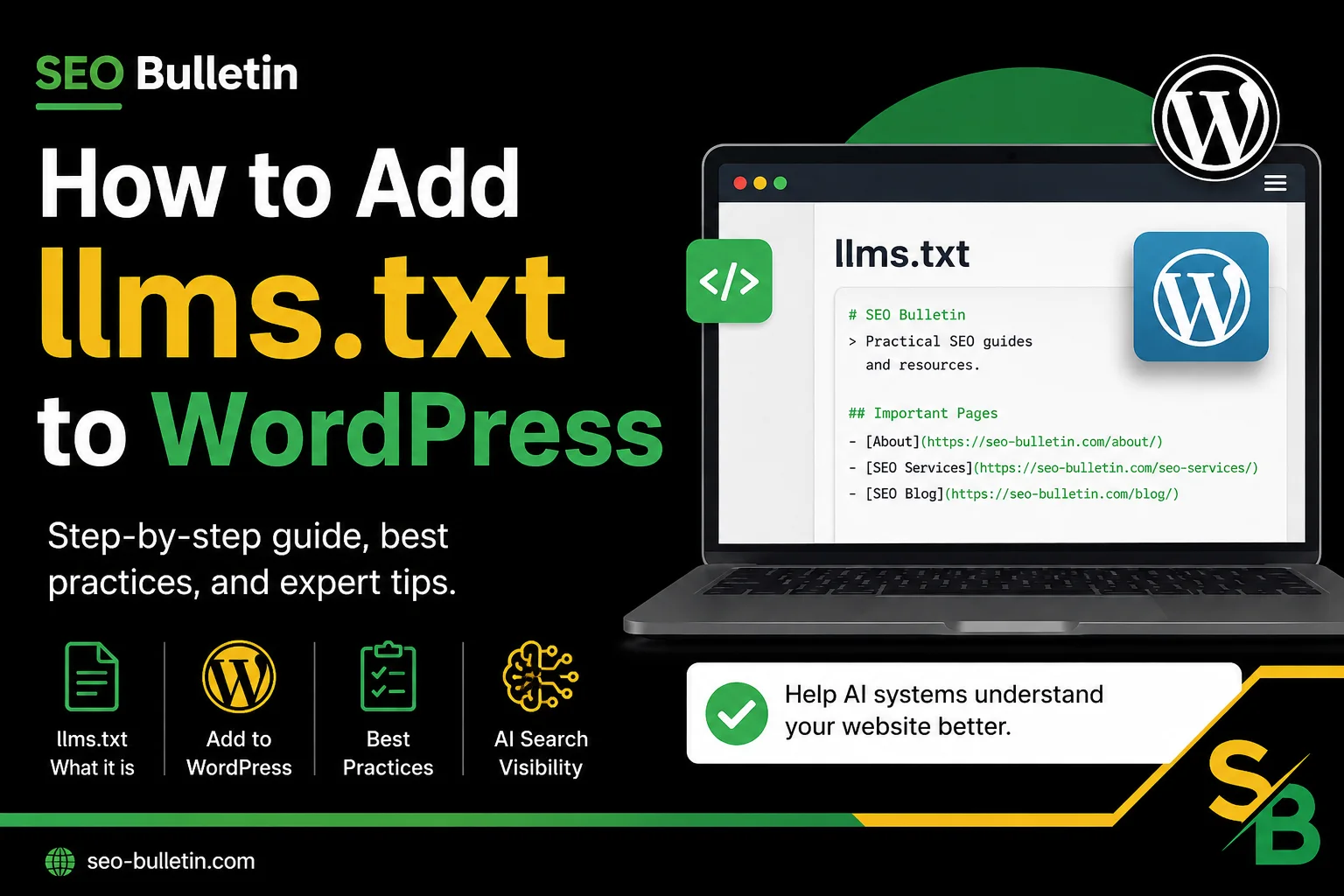
Most WordPress tutorials about llms txt make it sound like flipping a switch that instantly boosts your AI visibility—and that framing sets people up for the wrong expectations. Adding llms txt to WordPress takes less than 15 minutes. Doing it correctly—so the file is actually useful to AI systems rather than just technically present—takes a bit more thought. This guide covers both.
Table of Contents
What Is llms.txt and Why Does It Matter for WordPress Sites
The llms.txt proposal is a simple but meaningful idea: give AI agents a clean, structured entry point to your most important content. Instead of forcing an AI system to parse dynamic menus, paginated archives, and sidebar widgets, the llms.txt file acts as a plain-text guide to what actually matters on your site.
It is not a replacement for robots.txt or an XML sitemap—those still handle crawler access control and URL enumeration for search engines. The llms.txt proposal is specifically designed to provide context and links useful to AI agents.
WordPress sites have a particular problem here. A typical install generates dozens of URL types automatically: category archives, tag pages, author archives, date-based archives, paginated results. From an AI agent’s perspective, all that structure is noise. A curated llms.txt file cuts through it.
Before You Create the File: Start With Your Content
The step most tutorials skip entirely: don’t start with the file. Start with the content you want AI systems to understand.
If your important pages are vague or poorly structured, a beautifully formatted llms.txt file won’t fix the underlying problem. Before touching any file or plugin, run through this checklist:
- Homepage: Does it clearly explain what the business does and who it serves?
- About page: Does it explain expertise or credentials in concrete terms?
- Service or product pages: Are they specific enough that an unfamiliar visitor would understand the offering?
- Blog or resource content: Do you have posts that demonstrate depth on your core topics?
If the honest answer to most of those is “not really,” fix the content first. A well-formatted file pointing to weak pages accomplishes very little.
Method 1: Add llms txt to WordPress Using a Plugin
The plugin route is the fastest way to add llms.txt to WordPress, and there are two solid options.
Option 1: Yoast SEO Premium
If you’re already running Yoast SEO Premium, the feature is built in. Navigate to SEO → General → Features, enable the llms.txt toggle, save, then visit yoursite.com/llms.txt to review the output. The default pulls from your existing Yoast configuration—worth reviewing carefully before calling it done.
Option 2: Website LLMs.txt Plugin
For those on free Yoast or a different SEO plugin, the Website LLMs.txt plugin is a dedicated, lightweight option. After installing and activating:
- Go to Settings → LLMs.txt in your dashboard.
- Add your site description in the opening text field.
- Select which page types and individual pages to include.
- Save, then visit
yoursite.com/llms.txtto confirm the output.
One technical detail worth understanding: both plugins serve the file dynamically. No physical llms.txt file exists on your server—WordPress intercepts the request and generates content on the fly through a rewrite rule. This matters for troubleshooting. If you install a second plugin that also handles this URL, you can end up with conflicts or unexpected output. Always verify what the live URL actually returns.
Method 2: Add llms.txt to WordPress Manually
Manual creation makes sense for simpler sites, developers who want precise control, or anyone who wants to avoid a long-term plugin dependency.
Step 1: Create the file
Open any plain-text editor—Notepad, VS Code, or TextEdit in plain-text mode. Create a file named llms.txt. The format uses Markdown-style conventions:
# Your Site Name

> A clear, one or two sentence description of what this website is
> and who it serves.

## About
- [About Us](https://yoursite.com/about/)

## Services
- [Service Name](https://yoursite.com/services/service-name/)

## Resources
- [Guide Title](https://yoursite.com/blog/guide-title/)
Step 2: Upload the file
Open File Organizer from your WordPress dashboard.
Find the public_html folder. This is commonly the main folder where your WordPress website’s files are stored.
Upload your llms.txt file directly inside public_html.
Don’t put it inside wp-content, wp-admin, or wp-includes.
Your file should look like:
public_html/llms.txt
This should make it available at:
https://yourwebsite.com/llms.txt
What to Actually Put Inside Your llms.txt File
Here’s a realistic example for a WordPress business site:
# ABC Consulting

> ABC Consulting helps mid-sized US businesses improve operational
> efficiency through process audits, systems implementation, and
> staff training.

## About
- [About ABC Consulting](https://abcconsulting.com/about/)
- [Our Team](https://abcconsulting.com/team/)

## Services
- [Process Auditing](https://abcconsulting.com/services/process-auditing/)
- [Systems Implementation](https://abcconsulting.com/services/systems-implementation/)
- [Staff Training Programs](https://abcconsulting.com/services/training/)

## Resources
- [The Complete Guide to Operational Audits](https://abcconsulting.com/blog/operational-audit-guide/)
- [How to Choose a Business Consultant](https://abcconsulting.com/blog/choosing-consultant/)
Notice what’s absent: tag archives, author pages, paginated URLs, date-based URLs. The biggest mistake I see is treating llms.txt as an automatic URL dump—adding every post, page, and archive without thinking about what an AI system actually needs. More links do not equal better AI visibility; they add noise.
The curation principle is simple: include pages that explain what the site is, what it offers, and where the most substantive expertise lives. If a URL wouldn’t help an AI system understand your business better, leave it out.
How to Troubleshoot llms.txt Problems in WordPress
The most common issues follow a predictable pattern. Here’s the sequence I use to work through them.
1. Test the live URL first. Visit yoursite.com/llms.txt in your browser. A 404 means the file doesn’t exist at the expected location or the rewrite rule isn’t working. Unexpected content usually points to a plugin conflict.
2. Check for duplicate plugin conflicts. My first troubleshooting step is always to check whether more than one plugin is trying to generate llms.txt. If Yoast SEO Premium and the Website LLMs.txt plugin are both active, they may be competing for that URL. Disable one and test again.
3. Flush WordPress rewrite rules. If the file is served dynamically and returning a 404, go to Settings → Permalinks and click Save Changes. This regenerates rewrite rules without changing anything else.
4. Clear your cache. Both WordPress caching plugins and server-level caching can serve a stale 404 or outdated content. Clear everything and re-test.
5. Deactivate plugins one at a time. If the conflict isn’t obvious, deactivate plugins starting with anything SEO-related and test after each deactivation to isolate the source.
6. Verify the actual file contents. After resolving any conflict, read the raw output at /llms.txt and confirm it reflects your intended configuration—not a cached version from before your changes.
What llms.txt Will and Won’t Do for Your AI Visibility
I want to set accurate expectations here, because most tutorials skip this entirely.
I haven’t seen enough controlled data to claim that adding llms.txt alone produces a measurable increase in AI search visibility. Isolating its effect from content changes, crawling patterns, brand mentions, and shifts in how AI systems behave is genuinely difficult. It’s also worth acknowledging that not all AI systems consume this file the same way—the standard is still evolving.
What I find more plausible is that llms.txt becomes another structured layer between a website and AI agents. If the standard continues gaining adoption, a well-curated file could make it easier for those systems to surface the most important information on your site.
I see it as an experiment worth implementing correctly—not something I’d promise will increase your AI traffic. Think of it as one layer in a broader strategy alongside strong content, clean site structure, and solid internal linking, not a standalone fix.
Two Paths, One Principle
To add llms.txt to WordPress quickly, use a plugin—either Yoast SEO Premium or the Website LLMs.txt plugin from WordPress.org. For full control with no plugin dependency, create the file manually and upload it to your WordPress root via FTP.
Either way, the principle holds: start with your content, not the file. A curated llms.txt pointing to clear, well-structured pages is worth far more than a bloated one that dumps every URL WordPress generates automatically.
A natural next step is reviewing how your overall WordPress content is structured for AI discovery—including internal linking, page clarity, and whether your most important pages actually explain what you do.

This is Muhammad Asad. I like to play table tennis and love Digital Marketing and SEO. I have 7+ years of SEO experience. I would love to chat, discuss or break down any SEO or website problem.